
[ILL Requests] With the May 27th 2026 software update, Auto-Graphics has enhanced the visibility of important notes on all ILL Requests in SHAREit, including visual icons to indicate which requests have read and unread notes!
This new feature also adds a "Review" action to acknowledge any new or updated notes and remove any note indicators. Staff will now be asked to review notes, depending on if you're the Borrower or Lender library:
- Borrowers must acknowledge the following new or updated Notes: Lender's Notes, Patron Notes, Volumes Needed notes and Volume (article information) notes.
- Lenders must acknowledge the following new or updated Notes: Borrower's Notes, Volumes Needed notes and Volume (article information) notes.
- Requests with an Unreviewed Note will display an unread note icon when there are new or edited notes:

- Requests with a Reviewed Note will display a read note icon after the note(s) have been reviewed:

Please Note: This only applies to requests with notes created or updated after the software update and will display on Status Lists, Borrower and Lender Request Lists, and the Request Record.
Important Note: Notes sent by Alma ISO libraries (SFU & UVic) are now included in a new "ISO Note" field within a request rather than the History Information of a request.
Status Lists:
- Within the newly re-designed Request Manager, Staff can use the "Unreviewed Notes" tab to view only statuses with unread notes. For more information check-out our Request Manager guide here: https://illumebc.ca/guides/request-manager
- Within a status, Staff can use the icon filter column in their Request Manager > Status Lists (eg. Awaiting Approval) to sort requests with unread and read notes.
- Or Staff can also use the top-right quick filter to view requests only with unreviewed or unread notes.
- Hovering over the notes icon next to a request will also tell staff which note (eg. Lender's Note) needs to be read.

Note icons previously did not display on Borrower requests. And the new read/unread icons have replaced the "blue pushpin" icon previously displayed on Lender requests.
Borrower and Lender Request Lists:
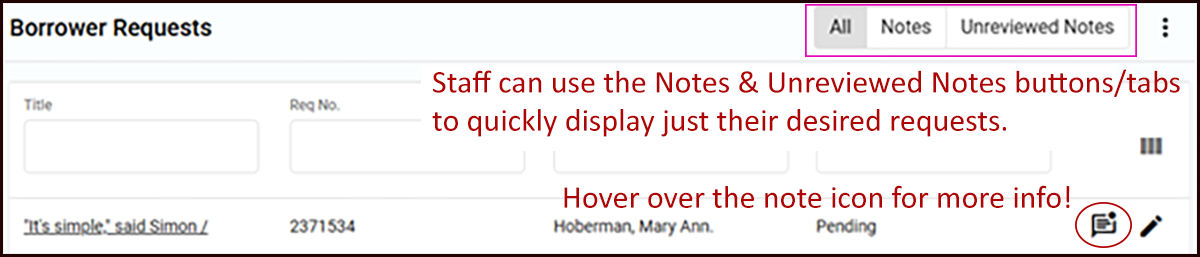
- Staff can click on the "Notes" button to display only requests with any type of notes while browsing the Staff Dashboard > ILL Admin > Borrower Requests or Lender Requests lists.
- Or click the "Unreviewed Notes" button to only display requests with unread notes.
- Hovering over the notes icon will also tell staff which note (eg. Lender's Note) needs to be read.
Request Record:
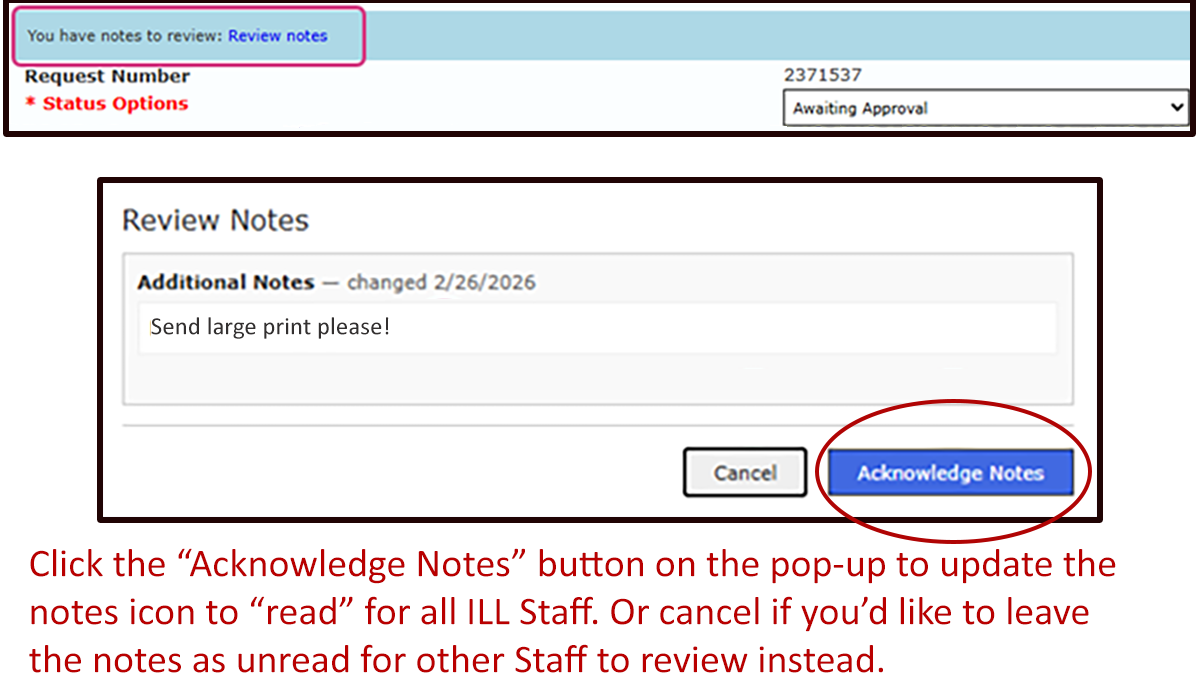
- When clicking the Full Details of a Request Record, if there are notes to review Staff will see a message at the top of the request.
- Clicking the "Review notes" hyperlink will pop-up the note details.
- Note alerts are displayed per library not based on your Staff account. So if one Staff person acknowledges a note it's then updated to "read" for all Staff on shared and non-shared accounts.
- The note alert will only then return to Unreviewed or unread status if it's again updated by the other partner library, for example to add or update their Lender's Note.
- From the pop-up, Staff can mark the Note as "read" using the "Acknowledge Notes" button confirmation.
- Or Staff can use the "Cancel" button to leave a note "unread' if they'd like to leave the alert for another Staff person to read later.
Please contact us know if you have any questions or would you like to suggest further software enhancements or improvements!